
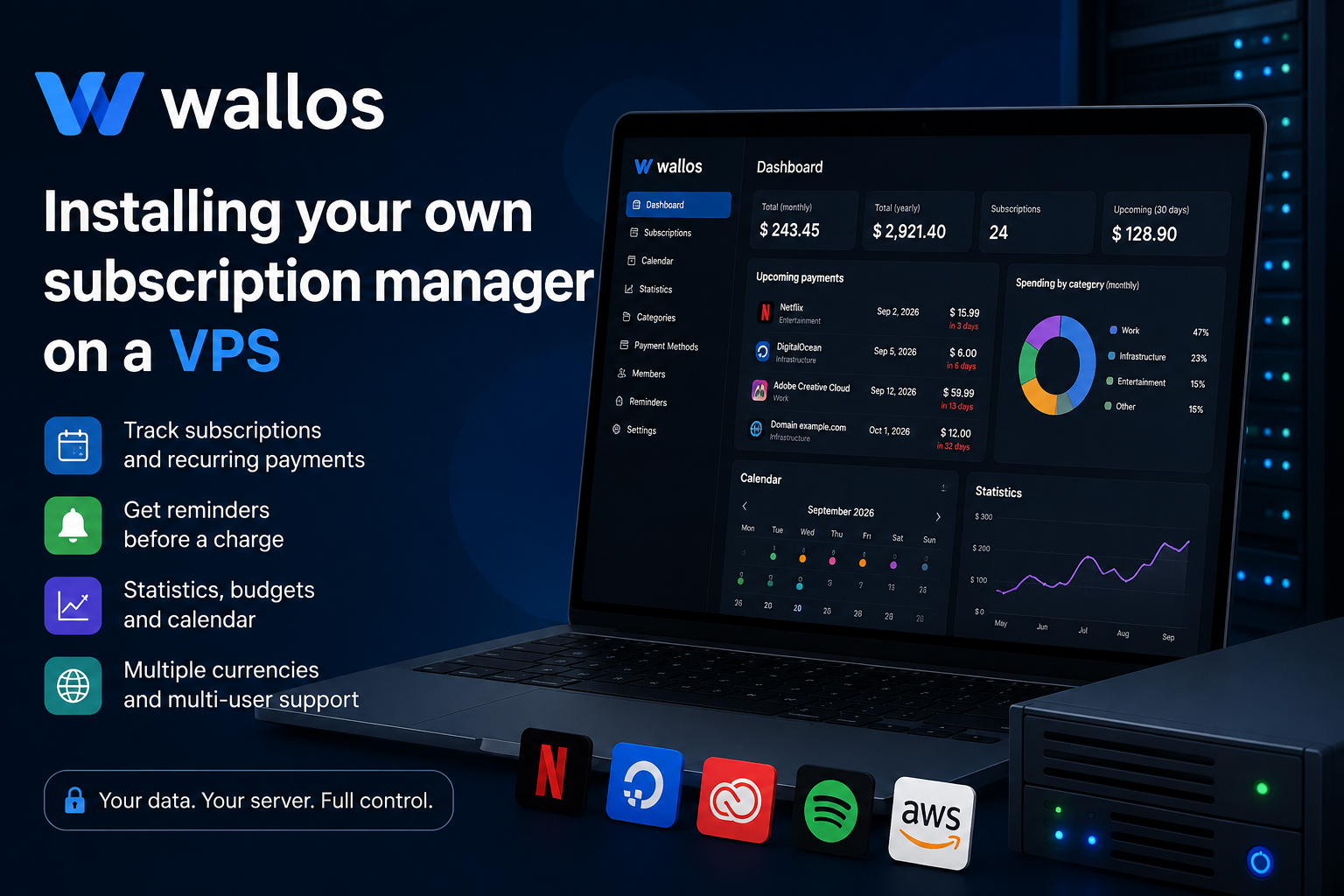
Wallos: installing your own subscription manager on a VPS
Subscriptions rarely seem expensive on their own: a few dollars for cloud storage, music once a month, a domain once a year, a VPN, an AI service, or a work tool. The problem becomes obvious later—when payments are spread across different dates, cards, and currencies, and a free trial quietly turns into a paid plan.
Wallos brings recurring expenses together in one dashboard, shows upcoming charges, calculates statistics, and sends reminders in advance. You can host the application on your own VPS without handing a third-party financial service a complete list of your expenses.
Below, we will explain how Wallos differs from a spreadsheet, what kind of server it needs, and how to install the application with Docker Compose.
What is Wallos?
Wallos is a free, open-source web application for tracking subscriptions and recurring payments. It can be installed on a home server, NAS, or VPS and accessed through a regular browser.
Each subscription becomes a card containing its name, price, currency, billing interval, next payment date, category, and payment method. Instead of dozens of emails and entries in a bank statement, you get a single calendar of mandatory expenses.
Wallos is not an online bank and does not cancel subscriptions on your behalf. Payments must be entered manually once and then updated whenever the plan, price, or billing date changes. This requires a little discipline, but the application does not ask for access to your bank account.
Why use a subscription manager?
A spreadsheet can also store a service name and price. The difficulty begins when monthly, quarterly, and annual plans are used at the same time.
A subscription costing €120 per year feels different from one costing €10 per month, even though the total expense is the same. Wallos brings payments into a common view and helps you see how much a group of small services costs per month or per year.
The service is especially useful when:
- you have accumulated many digital subscriptions, domains, VPS instances, and SaaS services;
- payments are made in several currencies;
- a family uses shared plans and different cards;
- a freelancer or team pays for work tools on different dates.
Wallos is most valuable before a charge occurs. When a reminder arrives in advance, there is still time to cancel an unnecessary plan.
Main Wallos features
Categories, payment methods, and household members
Entries can be organized into custom categories such as entertainment, work, infrastructure, communications, or education. Payment methods and household members are configured separately. This makes it easier to separate business expenses from personal ones or find subscriptions linked to a specific card.
Calendar, statistics, and budget
Wallos shows upcoming payments and visualizes spending. The calendar helps identify months with many annual renewals, while the statistics reveal which categories consume the most money.
Multiple currencies
Subscriptions can be stored in different currencies and converted into a primary currency. Fixer API is supported for automatic exchange-rate updates. This is useful when some services are paid in US dollars, others in euros, while the budget is managed in another currency.
Reminders before a charge
Reminders can be delivered by email, Telegram, Discord, Pushover, Gotify, and webhooks. Telegram or email is convenient for a personal server, while a webhook can connect Wallos to an automation system or your own bot.
Multiple users and Russian language support
A single Wallos instance can contain several user accounts. The interface has been translated into many languages, including Russian. Two-factor authentication and OIDC/OAuth single sign-on are also available.
API and AI recommendations
Wallos provides an API for custom integrations. Current versions support recommendations through ChatGPT, Gemini, or a local Ollama instance.
This feature is optional. For maximum privacy, use a local model or leave AI disabled: when an external provider is used, the data required for the request is processed outside your VPS.
Wallos, a spreadsheet, or a cloud tracker?
| Parameter | Spreadsheet | Cloud tracker | Wallos |
|---|---|---|---|
| Payment calendar | Requires setup | Usually available | Available |
| Reminders | Requires automation | Usually available | Available |
| Multiple currencies | Formulas or plugins | Depends on the service | Available |
| Data on your own server | With local storage | No | Yes |
| Maintenance | Minimal | Handled by the provider | Handled by the owner |
| Bank access | Not required | Sometimes required | Not required |
Wallos suits people who have outgrown a spreadsheet but do not want to connect their bank accounts to a third-party service. The price of control is taking care of updates, server security, and backups yourself.
Wallos server requirements
The official documentation does not specify an exact minimum for CPU and RAM; Docker is required for a container-based installation. Wallos uses PHP and a local SQLite database, so a personal instance does not need a powerful server.
A practical starting configuration is:
- 1 vCPU;
- 1 GB RAM;
- 10 GB SSD or NVMe;
- an up-to-date Linux system;
- a domain name, if permanent access from the internet is required.
512 MB of memory may be enough for the container, but there will be little headroom left on the VPS for the operating system, Docker, and a reverse proxy. A configuration with 2 GB RAM is more comfortable if Nginx and other small applications will run alongside it.
Installing Wallos on a VPS with Docker Compose
This guide assumes that Docker Engine and the Docker Compose plugin are already installed. Run the commands with sudo privileges.
Step 1. Create a directory
sudo mkdir -p /opt/wallos
cd /opt/wallos
Step 2. Create the Compose file
sudo nano compose.ymlservices:
wallos:
container_name: wallos
image: bellamy/wallos:latest
ports:
- "127.0.0.1:8282:80"
environment:
TZ: "Europe/Berlin"
volumes:
- "./db:/var/www/html/db"
- "./logos:/var/www/html/images/uploads/logos"
restart: unless-stoppedSet your own time zone in TZ. The db and logos directories are stored outside the container, so the database and logos remain intact after the image is updated.
The port is bound to 127.0.0.1, so the dashboard is not exposed directly to the internet. We will configure external access through Nginx and HTTPS.
Step 3. Start the container
sudo docker compose up -d
sudo docker compose ps
To view errors:
sudo docker compose logs --tail=100 wallosStep 4. Connect a domain and enable HTTPS
Point the domain's DNS record to the VPS IP address, then install Nginx and Certbot:
sudo apt update
sudo apt install -y nginx certbot python3-certbot-nginx
sudo nano /etc/nginx/sites-available/wallos
Add the following configuration:
server {
    listen 80;
    server_name wallos.example.com;

    location / {
        proxy_pass http://127.0.0.1:8282;
        proxy_set_header Host $host;
        proxy_set_header X-Real-IP $remote_addr;
        proxy_set_header X-Forwarded-For $proxy_add_x_forwarded_for;
        proxy_set_header X-Forwarded-Proto $scheme;
    }
}
Enable the site and issue a certificate:
sudo ln -s /etc/nginx/sites-available/wallos /etc/nginx/sites-enabled/wallos
sudo nginx -t
sudo systemctl reload nginx
sudo certbot --nginx -d wallos.example.com
The dashboard will be available at https://wallos.example.com.
Initial setup
When you open Wallos for the first time, create an account, then:
- select the primary currency;
- configure categories and payment methods;
- add household members if necessary;
- enable two-factor authentication;
- connect notifications and send a test message;
- add several real subscriptions.
Pay particular attention to the billing interval and the next payment date: reminders and forecasts depend on these values.
Do not store full card numbers, passwords, or recovery codes in notes. Wallos tracks payments, but it is not a password manager.
Updates and backups
To update the container, run:
cd /opt/wallos
sudo docker compose pull
sudo docker compose up -d
sudo docker image prune -f
Create a backup before updating. Important data is stored in the db and logos directories:
cd /opt/wallos
sudo docker compose stop
sudo tar -czf /root/wallos-backup-$(date +%F).tar.gz db logos compose.yml
sudo docker compose start
Move the archive to another device or separate storage. A backup kept on the same VPS will not help if the server is deleted or the disk is damaged.
Where is the best place to run Wallos?
A home server is suitable for local access if it runs around the clock. A VPS is more convenient when the dashboard must be accessible from a phone and computer anywhere, and reminders must arrive regardless of the state of your home internet connection.
Wallos does not require an expensive configuration. At tropic.host, you can start with a small Linux VPS with 1–2 GB RAM, install Docker, and place the dashboard behind Nginx with HTTPS. If you later add other self-hosted services, you can increase the resources without moving Wallos to a new machine.
A VPS does not eliminate basic security requirements: update the container and operating system, do not expose unnecessary ports, use a strong password, enable 2FA, and keep backups separately.
Conclusion
Wallos solves a narrow but frustrating problem: recurring payments stop being invisible. Instead of scattered emails, statements, and reminders, you get one dashboard with dates, currencies, categories, and notifications.
The service is useful for people with many digital subscriptions, families, freelancers, and small teams. It requires manual data entry, but in return the user's financial overview remains on their own server.
FAQ
Can Wallos be used for free?
Yes. Wallos is open-source software distributed under the GPLv3 license. The only costs are infrastructure expenses if the application is hosted on a VPS.
Does Wallos automatically find subscriptions linked to a bank card?
No. Entries are added manually. The application does not require access to a bank account.
What kind of VPS does Wallos need?
For personal use, 1 vCPU and 1 GB RAM are usually enough. A server with 2 GB RAM provides extra capacity for Nginx, updates, and other lightweight containers.
Is Russian available in Wallos?
Yes. The project includes a Russian localization that can be selected in the interface settings.
What should be copied to restore Wallos?
Save the db and logos directories, as well as the compose.yml file. The backup should be stored outside the VPS.