
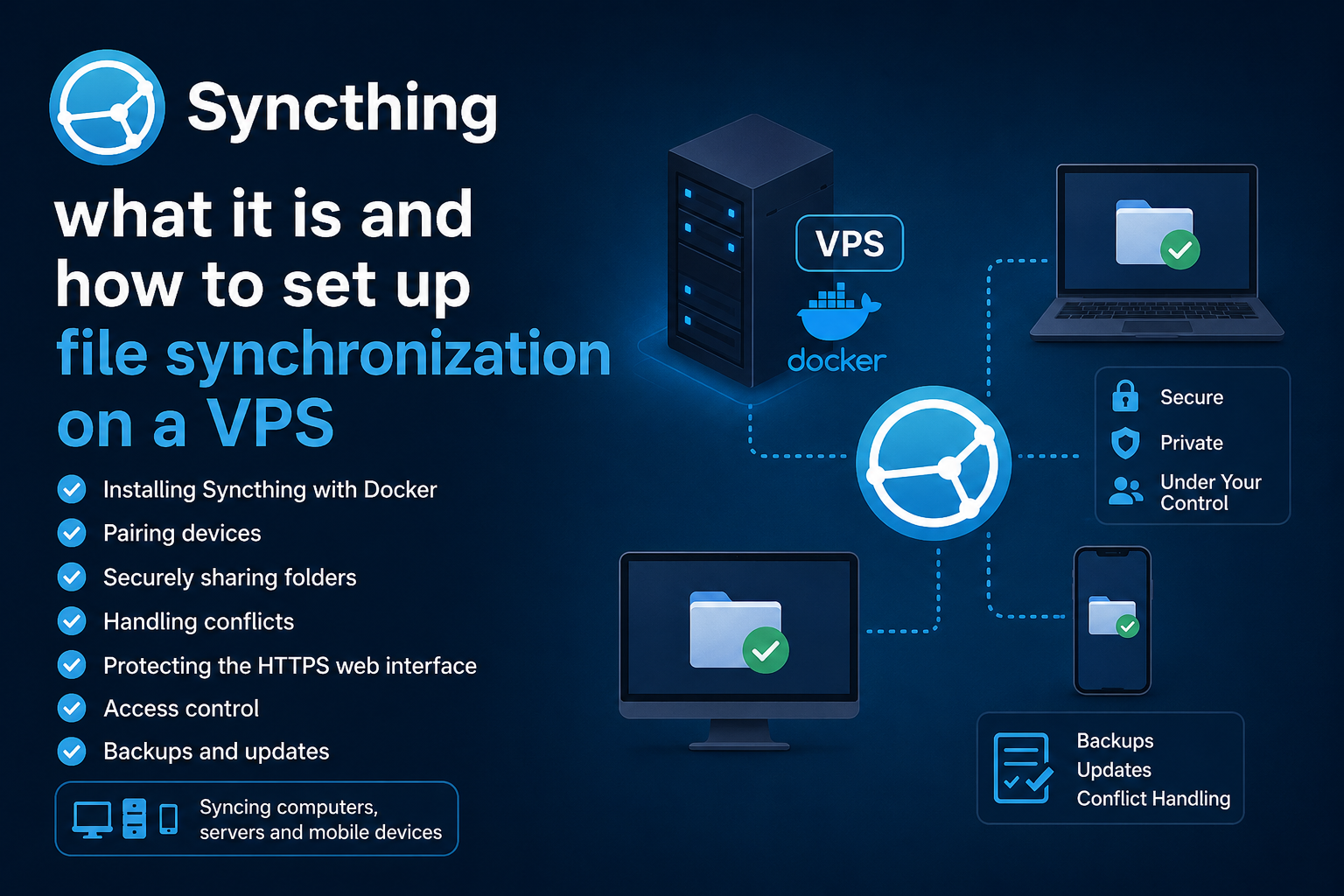
Syncthing: synchronizing files between devices without someone else’s cloud
You edit a document on your laptop in the morning and turn it off. In the evening, you open your home computer—and the latest version is already there. The file never passed through Google Drive or Dropbox: it was received by your own Syncthing node.
Syncthing directly synchronizes selected folders between trusted devices, while you remain in control of where the data is stored. A central server is optional.
However, if two computers are rarely online at the same time, exchanging changes becomes difficult. An always-on VPS solves this problem: it receives files from one device and later passes them to another.
It is important to understand what Syncthing is designed for. It is not a network drive or a browser-based file manager, but a tool for automatically replicating selected folders.
Syncthing in five steps
The minimum setup looks like this:
- Install Syncthing on the computers you need.
- Run another Syncthing instance on a VPS.
- Open the server dashboard through an SSH tunnel.
- Exchange device identifiers and approve the connection.
- Add a shared folder, select a synchronization mode, and enable file versioning.
What Syncthing is and how it works
Syncthing is free, open-source software for continuous file synchronization. It runs on Windows, macOS, Linux, and other desktop and server operating systems.
Each installation receives a unique Device ID—a cryptographic identifier. Before two nodes can exchange data, you must add them to each other and explicitly grant access to a specific folder. There is no single Syncthing account that stores your devices and files.
When a file changes, Syncthing divides it into blocks, compares checksums, and transfers only the missing parts. As a result, a small edit inside a large file does not always require the entire file to be sent again.
Discovery services help devices find each other, but they do not store files. If a direct connection is impossible, encrypted traffic can pass through a slower relay.
What a VPS changes
Without a server, a laptop can synchronize directly with a home computer, but both devices must be online at the same time, even if only briefly. A VPS turns the setup into an always-available exchange point.
For example, your laptop uploads a project to the server in the morning and then shuts down. In the evening, your home computer downloads the new version from the VPS.
Syncthing works well for documents, Obsidian notes, source code, photos, and family folders. Caches, node_modules, and build outputs are better excluded with .stignore. Active databases and virtual machine images should not be synchronized.
A VPS also creates a copy of your data outside your home. However, that copy becomes a proper backup only when combined with versioning and a separate backup archive: an accidental deletion can also propagate to every device.
Syncthing or Nextcloud: which should you choose?
The two tools are often compared even though they solve different problems.
| Criterion | Syncthing | Nextcloud |
|---|---|---|
| Model | Folders are copied between devices | Files are stored on a central server |
| Server required | No, a VPS is optional | Yes |
| Browser-based file access | No full-featured web drive | Yes |
| Public links | No | Yes |
| Collaborative editing | Not provided | Can be added |
| Best use case | Keeping the same folders on your own devices | A personal or team cloud |
Choose Syncthing for unobtrusive background synchronization. Choose Nextcloud when you need web access, shareable links, user accounts, a calendar, and collaboration features.
How to install Syncthing on a VPS with Docker Compose
The steps below are for a VPS running Ubuntu 24.04. The dashboard will remain bound to the server’s local address, and you will connect to it through an SSH tunnel.
1. Install Docker
sudo apt update
sudo apt install -y docker.io docker-compose-v2
sudo systemctl enable --now docker
2. Create the directory and Compose file
sudo mkdir -p /opt/syncthing/data
sudo chown -R 1000:1000 /opt/syncthing/data
cd /opt/syncthing
sudo nano compose.yaml
Paste the following:
services:
  syncthing:
    image: syncthing/syncthing:latest
    container_name: syncthing
    hostname: syncthing-vps
    environment:
      - PUID=1000
      - PGID=1000
      - STGUIADDRESS=
    volumes:
      - ./data:/var/syncthing
    network_mode: host
    restart: unless-stopped
This configuration uses the official Syncthing image. host network mode makes direct connections easier, while the empty STGUIADDRESS value keeps the dashboard on 127.0.0.1:8384.
Start the container:
sudo docker compose up -d
sudo docker compose ps
3. Allow synchronization connections
First allow SSH so that you do not lock yourself out:
sudo ufw allow OpenSSH
sudo ufw allow 22000/tcp
sudo ufw allow 22000/udp
sudo ufw enable
22000/TCP is used by the main synchronization protocol, while 22000/UDP is used for QUIC. You do not need to expose the dashboard port 8384. The local discovery port 21027/UDP is usually unnecessary on a public VPS.
4. Open the dashboard through SSH
Run the following command on your computer:
ssh -L 9999:127.0.0.1:8384 root@SERVER_IPKeep the terminal open and visit:
http://127.0.0.1:9999After opening the dashboard, go to Actions → Settings → GUI and set a username and password. If you later want to access the dashboard through a domain, place it behind an HTTPS reverse proxy and keep authentication enabled.
5. Add devices and a folder
Install Syncthing on your computer, then:
- On both the computer and the VPS, select Actions → Show ID.
- Add each node’s Device ID to the other device.
- On the computer, click Add Folder, select a directory, and share it with the server.
- On the VPS, accept the folder and choose a path such as
/var/syncthing/Files.
Leave Send & Receive enabled on computers for two-way synchronization. On the VPS, Receive Only is often convenient: the server continues to receive and forward changes between nodes, but accidental local edits made directly on the VPS will not spread across the entire network.
Why Syncthing does not replace a backup
If a file is deleted or encrypted on one device, that change can propagate to the others. For this reason, open the folder settings on the VPS and enable File Versioning.
A practical option is Staggered File Versioning with a retention period of 30–90 days. When a remote node replaces or deletes a file, the previous version is moved to .stversions. Older copies consume disk space, so set a retention limit.
A reliable setup has three layers:
- Syncthing keeps working copies up to date.
- Versioning helps reverse some mistakes.
- A separate scheduled backup is stored independently of Syncthing.
Can a VPS store files without seeing their contents?
Syncthing includes an untrusted device mode. You set a password for the folder on the main computer and select Receive Encrypted on the VPS. The server stores encrypted data and can pass it to another trusted device that uses the same password.
The contents, filenames, timestamps, and directory structure are hidden. Information about the shared folder and approximate file sizes remains visible.
The developers still consider this feature experimental. Store the password and Folder ID separately: without them, recovering the encrypted folder may be impossible.
What kind of VPS does Syncthing need?
Resource usage depends not only on the amount of data, but also on the number of files, how often they change, and the initial indexing process. For a personal node with documents and a few dozen gigabytes of data, a starter configuration is usually enough:
- 1 vCPU;
- 1 GB of RAM;
- SSD or NVMe storage;
- enough disk space for the files and
.stversions; - a stable network connection.
A large photo library or hundreds of thousands of files will require more resources. The highest load usually occurs during the first scan and checksum calculation.
A basic Ubuntu VPS from tropic.host is suitable for this task. You can start with a small configuration and increase resources as your collection grows. When choosing disk capacity, account not only for current folders, but also for future files, temporary data, and version history.
Five mistakes to avoid
- Exposing port 8384 to the entire internet. Use an SSH tunnel for setup. For permanent web access, use HTTPS, a password, and a reverse proxy.
- Treating the server copy as a complete backup. Enable versioning and create separate backup archives.
- Synchronizing caches and dependencies. Exclude unnecessary directories with
.stignore. - Ignoring disk usage. The
.stversionsdirectory can grow significantly over time. - Leaving a lost device trusted. Remove it from the other nodes and protect the Syncthing configuration that contains the device keys.
What you should know about smartphones
The official Android app was discontinued at the end of 2024, but community clients are available. There is no official iOS client either: background execution restrictions make continuous synchronization difficult. Before connecting your main photo library, test the chosen mobile app with a small folder.
Conclusion
Syncthing is suitable for anyone who wants the same folders on several devices without relying on a mandatory cloud intermediary. A VPS makes the system more convenient: computers no longer have to be online at the same time, and you gain an always-available copy outside your home.
For a secure setup, do not expose the administrative dashboard directly, enable versioning, and supplement synchronization with an independent backup.
FAQ
Do I need a VPS for Syncthing?
No. Devices can synchronize directly. A VPS serves as an always-on node that allows them to exchange changes at different times.
Can I open Syncthing files in a browser?
The web dashboard is intended for configuration, not for browsing documents like Google Drive. Nextcloud is a better choice if you need a web drive.
Is Syncthing a backup solution?
No. Deletions and corruption can propagate to other devices. Versioning helps, but it does not replace an independent backup.
Do I need to open port 8384?
No. Keep the dashboard on 127.0.0.1:8384 and connect through an SSH tunnel. Open 22000/TCP and 22000/UDP for synchronization.
Can the VPS owner read the files?
With a standard setup, potentially yes. Receive Encrypted stores them in encrypted form, but the feature is still considered experimental and requires you to keep the password and Folder ID safe.