
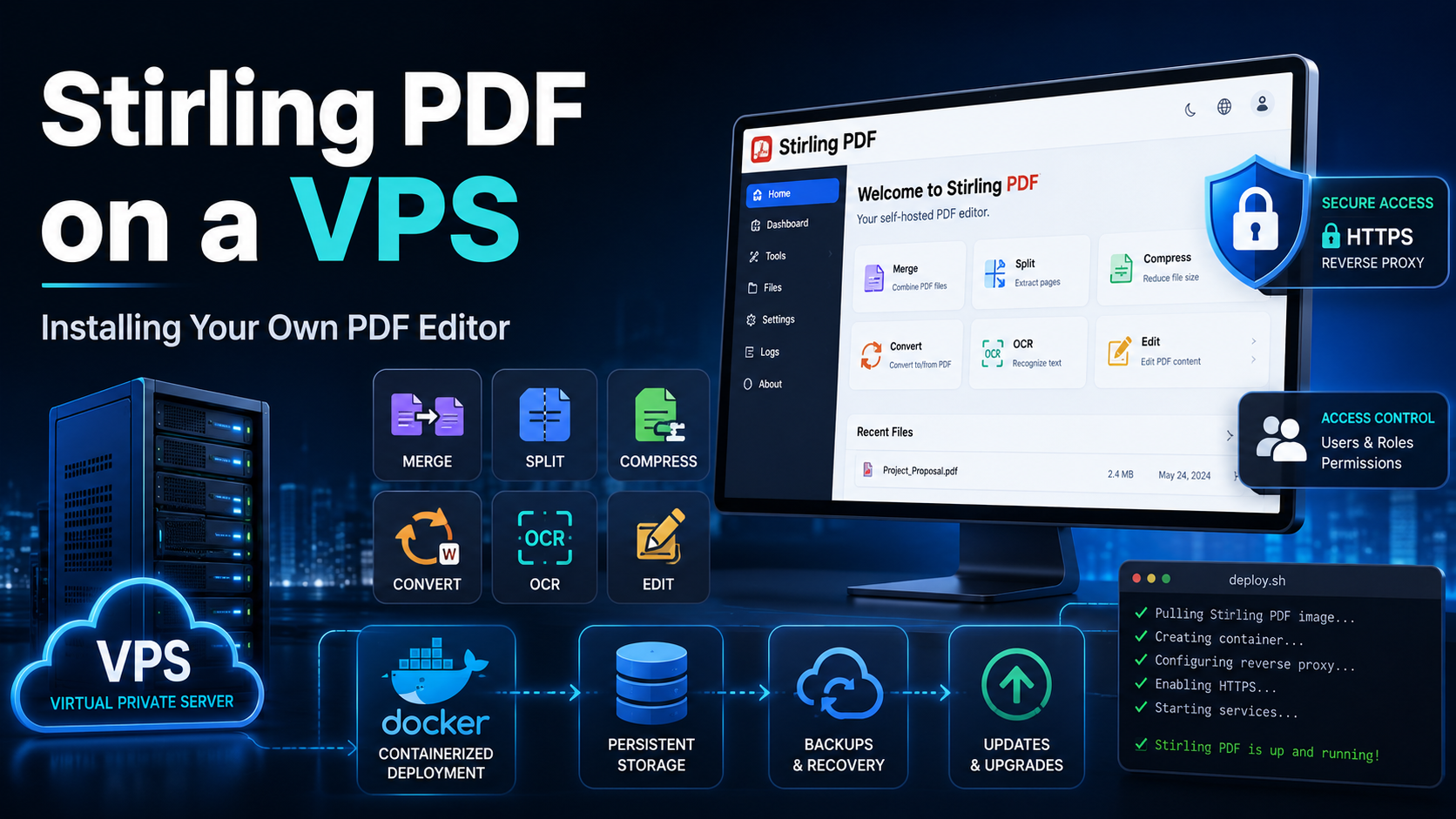
Stirling PDF: How to Install Your Own PDF Editor on a VPS
To merge a contract with an appendix, compress a passport scan, or hide payment details, many people upload the document to the first online service they find. Along with the file, signatures, addresses, invoices, and other confidential data may be sent to a third-party website.
Stirling PDF offers a different approach. It is a web application with dozens of PDF tools that you can run on your own VPS. The interface opens in a browser on a computer or phone, while your server processes the documents.
Below, we will look at the most interesting Stirling PDF features, the server requirements, and how to install it on Ubuntu with Docker Compose, authentication, and HTTPS.
What Is Stirling PDF?
Stirling PDF is a self-hosted platform for editing and processing PDF files. It combines more than 55 operations: merging and splitting files, rearranging pages, compression, conversion, OCR, signatures, watermarks, document comparison, and the removal of metadata and confidential information.
The service can be used as a desktop application, a cloud product, or a self-hosted server. In self-hosted mode, files are processed by your own Stirling PDF instance, and access can be protected with a password and HTTPS. The free server edition is intended for groups of up to five users; paid editions are available for larger teams and certain enterprise features.
The main difference from a regular online converter is control. You choose the provider, server location, users, and access rules. At the same time, you do not have to search for a separate website for every operation: one interface replaces a collection of services for compression, conversion, signing, and OCR.
The Most Interesting Stirling PDF Features
Visual Page Management
In Multi-Tool mode, the document is displayed as a grid of thumbnails. Pages can be dragged, rotated, deleted, split, inserted in the required position, and exported selectively. The file is uploaded only once, and changes support undo and redo.
OCR for Scanned Documents
OCR adds a text layer to a scanned PDF. After processing, you can search for words in the document, select text, and copy it. Deskewing, noise removal, and contrast enhancement are available. For the Russian language, you need to add the Tesseract package rus.traineddata separately.
Secure Data Redaction
A black rectangle placed over an account number does not always remove the original text. The Redact tool can remove matches from the PDF structure rather than merely cover them with a visual layer. You can mark an area manually or search the entire document for phone numbers, email addresses, card numbers, and other data using words or regular expressions.
Version Comparison and Mobile Scanner
Compare shows which words were added or removed between two versions of a contract, report, or technical specification. For paper documents, there is a mobile scanner: a QR code appears on the computer, the phone uploads photos directly into the current session, and temporary files are automatically deleted after download or ten minutes of inactivity.
Automation and API
Automate works like macros for PDF files. For example, you can save the following workflow once:
OCR → remove blank pages → compress → add a watermark → set a password
The same workflow can then be applied to new files without repeating every step. Stirling PDF also supports processing files from a watched folder and provides a REST API with built-in Swagger documentation.
What VPS Does Stirling PDF Need?
Processing a PDF may require much more memory than the source file itself occupies. OCR, converting pages to images, and converting office documents through LibreOffice are especially resource-intensive.
For a test deployment, 2 GB of RAM is enough, but for regular use it is better to choose:
- 2 vCPU;
- 4 GB of RAM;
- at least 10–20 GB of free space on an SSD or NVMe drive;
- Ubuntu 22.04 or 24.04.
If several users run OCR or conversion at the same time, it is more reasonable to choose 4 vCPU and 8 GB of RAM. For a low-powered server, there is a latest-ultra-lite image, while latest-fat includes additional fonts and tools for higher-quality conversion. The standard latest image is suitable for most users.
Installing Stirling PDF with Docker Compose
In the configuration below, the container listens only on the local interface. External access will later go through Nginx with HTTPS, so port 8080 will not be exposed to the entire internet.
Step 1. Install Docker
ssh root@SERVER_IP
apt update && apt upgrade -y
apt install -y curl
curl -fsSL https://get.docker.com -o get-docker.sh
sh get-docker.sh
rm get-docker.sh
Verify the installation:
docker --version
docker compose version
Step 2. Create the Docker Compose Configuration
mkdir -p /opt/stirling-pdf/{configs,logs,pipeline}
cd /opt/stirling-pdf
nano docker-compose.yml
Add the configuration:
services:
  stirling-pdf:
    image: docker.stirlingpdf.com/stirlingtools/stirling-pdf:latest
    container_name: stirling-pdf
    restart: unless-stopped
    ports:
      - "127.0.0.1:8080:8080"
    volumes:
      - ./configs:/configs
      - ./logs:/logs
      - ./pipeline:/pipeline
    environment:
      - SECURITY_ENABLELOGIN=true
      - SYSTEM_DEFAULTLOCALE=ru-RU
      - SYSTEM_GOOGLEVISIBILITY=false
Start the service:
docker compose up -d
docker compose ps
For diagnostics, use:
docker compose logs --tail=100 stirling-pdfStep 3. Sign In for the First Time
Before configuring a domain, open the interface through an SSH tunnel. Run the command on your computer:
ssh -L 8080:127.0.0.1:8080 root@SERVER_IPGo to http://localhost:8080. The default first-login credentials are username admin and password stirling. Change the password immediately in the account settings.
Connecting a Domain and HTTPS
Create an A-type DNS record for an address such as pdf.example.com and point it to the server's IP address. Then install Nginx and Certbot:
apt install -y nginx certbot python3-certbot-nginx
nano /etc/nginx/sites-available/stirling-pdf
Add the configuration and replace the domain name:
server {
    listen 80;
    server_name pdf.example.com;
    client_max_body_size 500M;

    location / {
        proxy_pass http://127.0.0.1:8080;
        proxy_set_header Host $host;
        proxy_set_header X-Real-IP $remote_addr;
        proxy_set_header X-Forwarded-For $proxy_add_x_forwarded_for;
        proxy_set_header X-Forwarded-Proto $scheme;
        proxy_read_timeout 300s;
    }
}
Enable the site and obtain a certificate:
ln -s /etc/nginx/sites-available/stirling-pdf /etc/nginx/sites-enabled/stirling-pdf
nginx -t
systemctl reload nginx
certbot --nginx -d pdf.example.com
Stirling PDF is now available over HTTPS, while internal port 8080 remains closed. For files larger than 500 MB, increase client_max_body_size.
How to Add Russian OCR
Create a directory and download the English and Russian Tesseract packages:
cd /opt/stirling-pdf
mkdir -p tessdata
curl -L -o tessdata/eng.traineddata \
  https://raw.githubusercontent.com/tesseract-ocr/tessdata_fast/main/eng.traineddata
curl -L -o tessdata/rus.traineddata \
  https://raw.githubusercontent.com/tesseract-ocr/tessdata_fast/main/rus.traineddata
Add the following line to the volumes section of the docker-compose.yml file:
- ./tessdata:/usr/share/tessdataApply the changes and check the available languages:
docker compose up -d
docker exec stirling-pdf tesseract --list-langs
The list should include eng and rus.
Security, Updates, and Limitations
Before regular use, change the default password, keep authentication enabled, do not expose port 8080, and allow only SSH, HTTP, and HTTPS through the firewall. The configs and pipeline directories should be included in backups. Stirling PDF analytics are enabled only after user consent and can be completely disabled by the administrator.
To update the application, run:
cd /opt/stirling-pdf
docker compose pull
docker compose up -d
Stirling PDF covers most everyday tasks, but it does not always preserve complex layouts when converting between PDF and office formats. OCR does not recognize the structure of tables and formulas, and the quality of handwritten or very small text is limited. For good results, use clear scans with a resolution of around 300 DPI.
Stirling PDF on a VPS from tropic.host
The service does not require a graphics card: RAM, stable CPU performance, and fast storage are more important. It is better to choose a location close to the users, because large documents are first uploaded to the server and then downloaded again.
For a personal instance or a small team, a Linux VPS with 2 vCPU and 4 GB of RAM is usually enough. On a VPS from tropic.host, you can install Ubuntu, launch the Docker Compose configuration shown above, and host the interface on a separate subdomain. Extra memory is especially important if other containers are running on the same server.
Conclusion
Stirling PDF turns a VPS into your own web service for documents. It combines dozens of tools and supports OCR, genuine removal of confidential data, version comparison, mobile scanning, automation, and an API.
The main reason to deploy it yourself is control over your files. For contracts, invoices, forms, and internal documents, a protected instance with authentication and HTTPS is more convenient than a collection of random online converters.
FAQ
Is Stirling PDF free?
Yes. The free self-hosted edition supports up to five users. Larger teams and organizations that need enterprise features require a paid edition.
Do documents leave my server?
In self-hosted mode, they are processed by your own Stirling PDF instance. The final level of security depends on the VPS configuration, HTTPS, passwords, updates, and administrator access.
Is 2 GB of RAM enough?
For testing and light operations, yes. For regular use, OCR, and conversion, it is better to choose 4 GB of RAM, and more for concurrent workloads.
Is a domain required?
No. The service can be opened by IP address or through an SSH tunnel. A domain is useful for a convenient permanent address and proper HTTPS configuration.
Is Russian OCR supported?
Yes. Add the rus.traineddata file to the Tesseract directory and mount it into the container.