
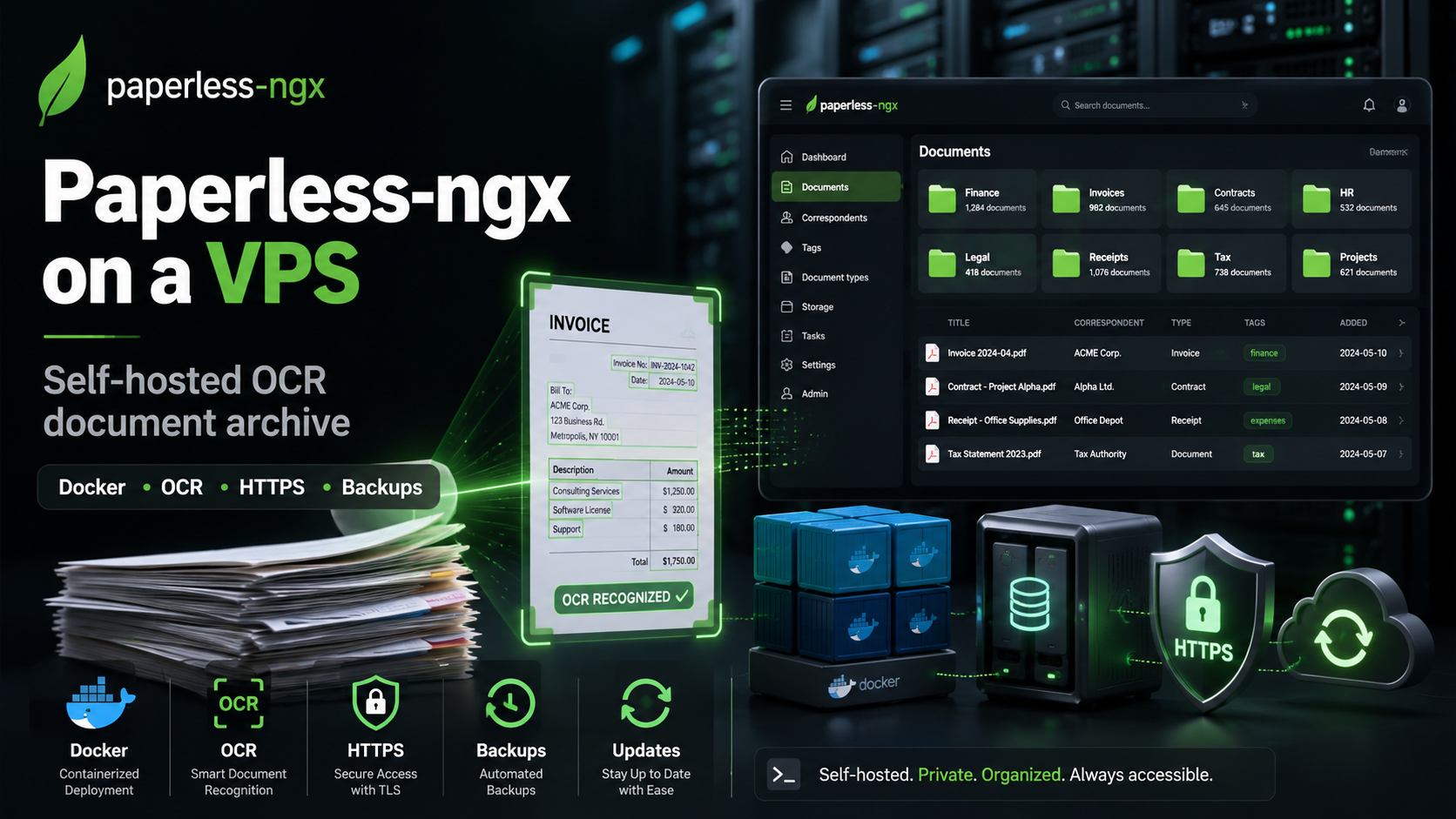
Paperless-ngx: how to create your own searchable document archive
You remember that a contract contained an important amount, but the file is named scan_2024_03_17.pdf and sits among hundreds of similar files. A regular file manager searches by filename, while the words you need are inside the scan.
Paperless-ngx solves this problem. You upload a PDF, a photo of a receipt, or an email attachment, and the service recognizes the text, indexes it, and turns scattered files into a single archive. After that, you can find a document by surname, address, account number, or any phrase on the page.
What is Paperless-ngx
Paperless-ngx is a free, open-source document management system. It runs on your own server, accepts files from different sources, performs OCR, and lets you search their contents.
Instead of one rigid folder structure, it uses correspondents, document types, tags, dates, custom fields, and storage rules. This lets you display 2026 electricity bills, documents for a specific apartment, or warranties that are about to expire in seconds.
Why Paperless-ngx is better than ordinary folders
Folders work while you have few documents and still remember your naming system. After a few years, directories such as Documents, Scans, New, and To sort appear, and finding the right file becomes difficult.
| Ordinary folder | Paperless-ngx |
|---|---|
| Search by filename | Search the text inside a document |
| One file, one folder | Multiple tags and attributes |
| Manual naming and sorting | Automatic metadata assignment |
| Attachments must be saved manually | Import from email |
| A scan remains an image | OCR makes the text searchable |
Instead of trying to remember a directory, you only need to remember one word from the document.
How Paperless-ngx processes a file
After an upload, the service:
- saves the original file;
- extracts existing text or starts OCR;
- creates an archival PDF version and thumbnails when necessary;
- adds the contents to a full-text index;
- applies rules and suggests a correspondent, type, tags, and storage path.
You can start with uploading and search, then add automation later.
The most useful Paperless-ngx features
Search inside scans
After OCR, you can find a contract by address, an invoice by customer number, and a receipt by device model. For example, a search for “early termination” will show documents containing that phrase even when the original PDF consisted only of images.
Quality depends on the scan: a straight, high-contrast page is recognized better than a dark photo taken at an angle. For a Russian-English archive, it is important to install both OCR languages.
Automatic sorting
Paperless-ngx can match new documents with ones you have already organized. You manually label several invoices from one provider, and the service learns to suggest the same correspondent, type, and tags for the next files.
For strict logic, you can create rules based on text, filename, source, or upload folder.
Import from email
The service can check a mailbox over IMAP and process messages according to rules. For example, it can retrieve only PDF attachments from a supplier, send them to the archive, and then mark the email as read or move it to another folder.
Invoices stop accumulating in the inbox and become searchable alongside scans.
Workflows, fields, and saved views
Workflows perform actions when a document is uploaded, added, changed, or on a schedule. They can assign an owner, add a tag, select a type, and set a storage path.
Custom fields turn the archive into a small database. For a contract, you can store an expiration date; for an invoice, an amount and payment deadline; and for equipment, a serial number. Saved views can then show, for example, “payment required” or “warranty expires this month.”
Batch scanning with barcodes
Paperless-ngx can split one large scan into several documents using barcodes. You can place separator pages between papers or attach an ASN code to the first sheet.
ASN is an archive serial number that links a digital copy to the paper original. This is convenient when digitizing large stacks.
Versions and optional AI
The Paperless-ngx 3.x series introduced document versions, link sets for shared access, and built-in AI features. When a model is connected, the service can suggest metadata and answer questions about documents.
AI is not required for the core features: OCR, search, rules, tags, and email import work without it. When you use an external AI API, some text may leave the server, while a local model requires more resources.
Who Paperless-ngx is suitable for
For a personal or family archive: contracts, insurance policies, statements, warranties, receipts, housing documents, and equipment manuals.
For freelancers and small businesses: invoices, acceptance certificates, contracts, expenses, and correspondence with counterparties. Email import reduces manual work, while access permissions let users share documents.
For administrative processes: fast search through source documents, selections by supplier and period, and a queue of unprocessed files.
Paperless-ngx does not replace accounting software, an electronic signature, or a corporate ECM system.
What kind of server Paperless-ngx needs
The load depends on the number of pages, scan quality, upload frequency, and additional components. You can use these practical starting points:
| Scenario | CPU | RAM | Disk |
|---|---|---|---|
| Personal archive | 2 vCPU | 2 GB | 30–50 GB NVMe or more |
| Family or small team | 2–4 vCPU | 4 GB | 60–100 GB NVMe or more |
| Large batches, Office files, local AI | 4 vCPU or more | 8 GB or more | Archive size plus spare capacity |
On a weak server, the interface may work normally, but OCR for large documents will be slow. Tika and Gotenberg for Word, Excel, and other office formats also increase memory usage.
Plan disk capacity with room to spare: in addition to originals, the system may store archival versions, thumbnails, an index, a database, and temporary files. Backups require separate space as well.
Installing Paperless-ngx on a VPS with Docker
The simplest supported method is Docker Compose. You need a Linux server, Docker Engine, and the Compose plugin.
The official project provides an interactive installer:
bash -c "$(curl -L https://raw.githubusercontent.com/paperless-ngx/paperless-ngx/main/install-paperless-ngx.sh)"It asks for the directory, database, port, OCR language, additional components, and administrator account, then creates a Compose configuration and starts the containers.
On a production server, it is safer to download and inspect the script first:
curl -L https://raw.githubusercontent.com/paperless-ngx/paperless-ngx/main/install-paperless-ngx.sh \
  -o install-paperless-ngx.sh
less install-paperless-ngx.sh
bash install-paperless-ngx.sh
From the installation directory, you can check the startup with these commands:
docker compose ps
docker compose logs -f webserver
For Russian and English OCR, you normally set rus+eng and install the additional rus eng language data in Docker.
Do not expose the application's internal port directly. Connect a domain through a reverse proxy, enable HTTPS, and close unnecessary ports. For a personal archive, allowing access only through a VPN is even safer.
Paperless-ngx on a tropic.host VPS
For a small archive, a VPS with 2 vCPU, 2–4 GB of RAM, and NVMe storage is suitable. On tropic.host, you can deploy Ubuntu, install Docker, and keep Paperless-ngx accessible from a computer and phone without a home NAS.
A VPS runs around the clock, so the service can regularly collect email attachments. However, documents often contain personal data: use HTTPS or a VPN, SSH keys, a restrictive firewall, and independent backups.
Security and backups
Paperless-ngx does not provide built-in end-to-end encryption for documents. A user with full access to the server, Docker volumes, or a backup could potentially read the archive.
Minimum measures:
- host the service only on trusted infrastructure;
- update the system and containers;
- restrict SSH access to keys;
- store encrypted copies outside the main server;
- periodically test recovery.
For migration and backups, there is a built-in document_exporter:
docker compose exec webserver document_exporter ../exportCopy the export directory to another device or independent storage. A copy on the same VPS will not protect against disk damage, accidental deletion, or loss of access.
Is Paperless-ngx worth installing?
Paperless-ngx is useful when the problem is no longer storing files, but finding them. It turns scans, attachments, and PDFs with unclear names into an archive where documents are found by their contents and processed according to consistent rules.
To get started, it is enough to install the service, configure OCR languages, and upload the first files. Tags, email import, workflows, barcodes, and AI features are worth adding when you have a clear, repetitive process.
FAQ
Can Paperless-ngx be used for free?
Yes. It is an open-source project. Costs arise only for hardware, a VPS, a domain, or external services.
Can Paperless-ngx recognize Russian text?
Yes. OCR uses the Tesseract rus language package. For a mixed archive, rus+eng is normally configured.
Is the original file deleted after OCR?
No. The original file is preserved. Depending on the settings, a separate archival PDF version may be created alongside it.
Can documents be uploaded from a phone?
Yes. You can use the web interface, API, a compatible mobile app, or forward the document to a connected email address.
Is a VPS backup enough?
A VPS snapshot is useful, but it is better to combine it with the built-in exporter and store a separate copy. It is important not only to create an archive, but also to test recovery on a clean installation.