
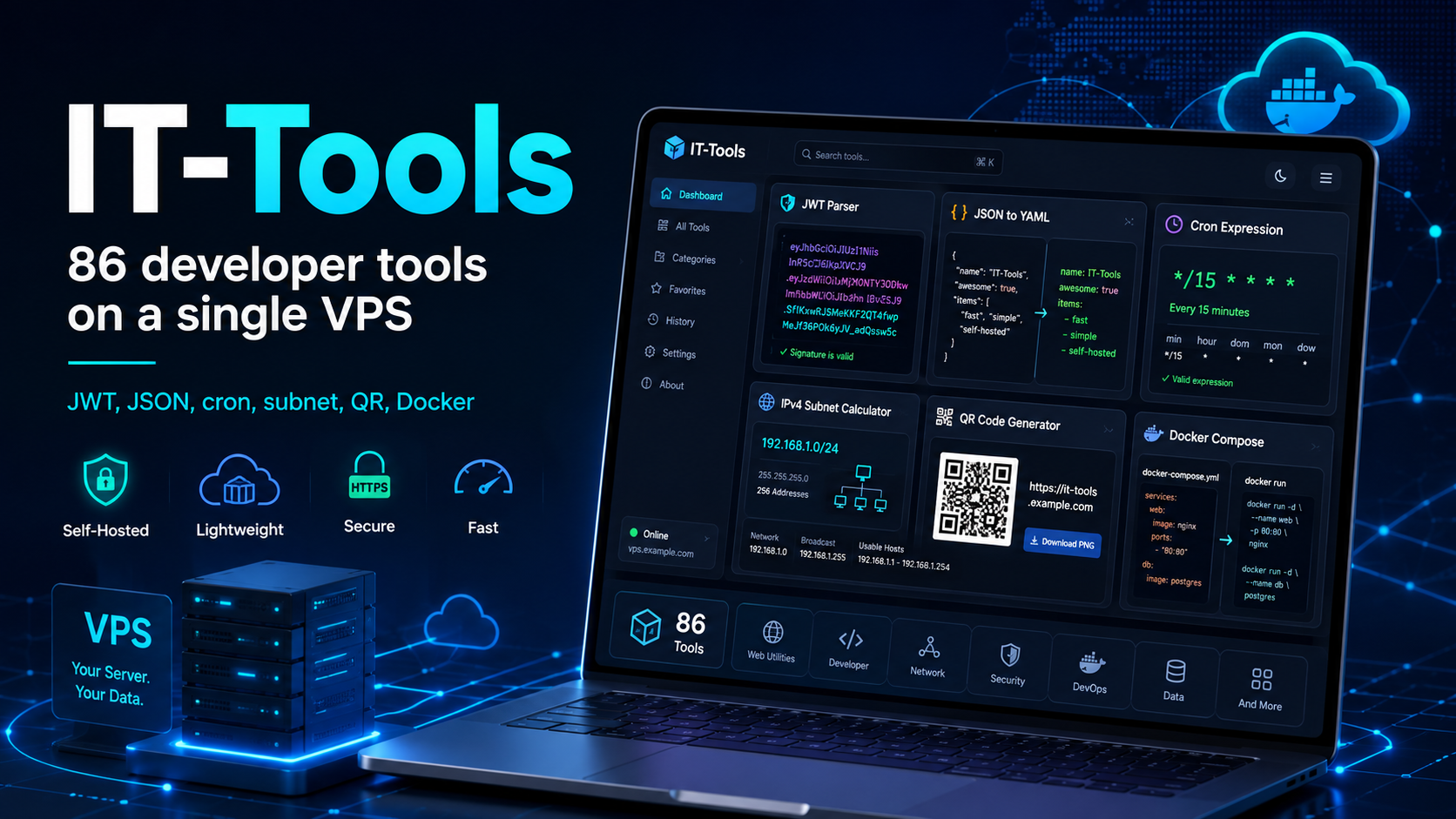
IT-Tools: 86 developer tools on a single VPS
You need to decode a JWT, convert JSON to YAML, check a cron expression, calculate a subnet, or generate a QR code. The usual scenario is to open several random websites, close the ads, and paste your data into them one by one.
IT-Tools replaces this collection of tabs with a single dashboard. The current version of the project includes 86 utilities for development, administration, networking, text, and data. This is not an obscure pet project: at the time this article was prepared, the repository had collected more than 40,000 stars on GitHub, while the official Docker image had exceeded 10 million downloads. The service is free, open source, and runs on your own server in a single container.
Below, we will look at why IT-Tools is useful, what kind of VPS it needs, and how to make the dashboard safely available through your own domain.
IT-Tools in five steps
- Prepare a Linux VPS with Docker.
- Run the official IT-Tools container.
- Check the dashboard on port
8080. - Connect a subdomain and enable HTTPS through a reverse proxy.
- Restrict access with a VPN, SSO, or additional authentication.
For a quick test, one command is enough:
docker run -d \
  --name it-tools \
  --restart unless-stopped \
  -p 8080:80 \
  corentinth/it-tools:latest
After it starts, open http://SERVER_IP:8080.
This option is suitable for testing, but not for permanent public access. It is better to close the exposed 8080 port and place the application behind HTTPS and an access control system.
What is IT-Tools
IT-Tools is a collection of small web tools for developers and professionals working with IT infrastructure. The project is distributed under the GNU GPLv3 license, and its source code is available on GitHub.
The application is built with Vue and TypeScript. The production build is a static interface served by Nginx inside the official container. It does not require a separate database, Redis, or an application server. As a result, IT-Tools uses few resources and is suitable even for a small VPS.
The tools are divided into ten categories:
| Task | Example tools |
|---|---|
| Cryptography | tokens, UUID, ULID, hashes, HMAC, bcrypt, RSA |
| Conversion | Base64, JSON, YAML, TOML, XML, CSV, Markdown |
| Web development | JWT Parser, URL Parser, Basic Auth, OTP, HTTP status codes |
| DevOps | crontab, chmod, SQL Formatter, Docker Run to Docker Compose |
| Networking | IPv4 subnets and ranges, MAC addresses, IPv6 ULA |
| Text and media | text comparison, statistics, slugs, QR and Wi-Fi QR codes |
This is not a directory of links: every tool opens inside the shared dashboard and is immediately ready to use.
Why IT-Tools is more convenient than random online services
One interface instead of dozens of tabs
You only need to save one address, such as tools.example.com. Search opens with Ctrl + K on Windows and Linux or Cmd + K on macOS. It searches names, descriptions, and categories, so the required utility can be found in seconds.
Favorites adapt to the user
Frequently used tools can be pinned and dragged into a convenient order. The list is stored locally in the browser. No separate account is required, but favorites are not synchronized between devices and will disappear after the site's data is cleared.
The dashboard can be installed as an application
The project includes PWA support. IT-Tools can be added to the desktop or a phone's home screen and launched in a separate window.
Your own server gives you more control
When using a public converter, you have to trust the website owner, its analytics, and any connected scripts. Your own IT-Tools instance runs on infrastructure you choose, and the standard installation does not require server-side storage for the data you enter.
Self-hosting does not turn every generator into a certified security tool. Seed phrases, private keys, and other critical secrets are better generated in an isolated environment with specialized tools.
Tools that save the most time
- JWT Parser displays the token header and payload. This is useful when debugging authentication, but decoding does not verify the authenticity of the signature.
- Docker Run to Docker Compose converts a long launch command into a readable Compose file. Paths, secrets, and networks should still be checked manually after conversion.
- Crontab Generator helps create a schedule and translates it into a human-readable description.
- IPv4 Subnet Calculator shows the mask, range, broadcast address, and number of available addresses.
- JSON, YAML, TOML, and XML converters are useful when working with APIs, configuration files, and deployment files.
- Wi-Fi QR Code Generator creates a code for connecting to a guest or office network without entering the password manually.
IT-Tools does not replace the command line, CI/CD, or automated tests. If an action must be repeated hundreds of times, it is better to turn it into a script. The dashboard's strength is fast one-off operations and visual verification of the result.
Who IT-Tools is for
Developers get quick access to JWT tools, data formatting, SQL, and regular expressions. DevOps engineers will find cron, chmod, network calculations, and the Docker converter useful. A small team can use IT-Tools as an internal page on its own domain, while for a homelab owner it is a simple first self-hosted service that does not require a database.
IT-Tools server requirements
The official project does not specify strict hardware requirements. For a standalone dashboard, the following practical starting configuration is usually sufficient:
1 vCPU;1 GB RAM;5–10 GBof disk space for Linux, images, and logs;- Ubuntu, Debian, or another Linux distribution with Docker;
- a public IP address and domain if the service is needed outside the local network.
The container itself can run with less memory, but 1 GB leaves headroom for the operating system, SSH, updates, and the reverse proxy. When hosting it alongside other applications, take their combined load into account.
Installing IT-Tools with Docker Compose
For long-term use, Compose is more convenient because the entire configuration is stored in one file.
sudo mkdir -p /opt/it-tools
cd /opt/it-tools
sudo nano compose.yaml
Add:
services:
  it-tools:
    image: corentinth/it-tools:latest
    container_name: it-tools
    restart: unless-stopped
    ports:
      - "127.0.0.1:8080:80"
Start the container:
sudo docker compose up -d
sudo docker compose ps
curl -I http://127.0.0.1:8080
Binding to 127.0.0.1 means the port is available only inside the VPS. External users will connect through the reverse proxy.
If the docker compose command is unavailable, install the current Docker Engine and Docker Compose plugin from Docker's official repository. The obsolete docker-compose command is not needed for a new installation.
How to connect a domain, HTTPS, and access protection
Create a DNS A record pointing to the server's IP address, for example tools.example.com. Then configure Nginx, Caddy, or Traefik. For Caddy, the following is enough:
tools.example.com {
    reverse_proxy 127.0.0.1:8080
}
Caddy will request a TLS certificate and make the application available over HTTPS, while port 8080 remains inaccessible from the internet.
The standard IT-Tools distribution does not include a full user and role system. For an internal dashboard, add one of the following protection methods:
- WireGuard, Tailscale, or another VPN;
- authentication at the reverse proxy;
- SSO through Authelia, Authentik, or a corporate identity provider;
- access restrictions by IP address.
A "secret" subdomain is not a security measure: it can be discovered through certificate transparency logs or DNS scanning.
Updates and backups
cd /opt/it-tools
sudo docker compose pull
sudo docker compose up -d
sudo docker image prune -f
The latest tag is convenient for a home installation, but in a stable environment it is better to pin a tested image tag or digest. The source repository may evolve faster than the stable container: a newer nightly build should be used only after testing.
A complex backup is not required because there is no server-side database. Save compose.yaml, the reverse proxy configuration, and the access settings. Favorites are stored in the browser and will not be included in the server backup.
IT-Tools on a VPS from tropic.host
IT-Tools is a good choice for a first self-hosted service on a VPS: it runs in a single container, does not require a database, and creates almost no continuous load. The dashboard can be placed on a separate subdomain, secured with HTTPS, and made available only through a VPN or authentication.
A basic Linux VPS from tropic.host is suitable for this task. You can start with a small configuration and later use the same server for other lightweight Docker applications, provided there is enough RAM and disk space. The most important factors are a stable network, regular updates, and correctly configured access.
Conclusion
IT-Tools turns dozens of small technical tasks into one clear dashboard. It includes converters, generators, network calculators, and tools for JWT, Docker, cron, SQL, text, and QR codes.
A small VPS and Docker are enough to run it. A public installation should be placed behind HTTPS and protected with a VPN, SSO, or additional authentication.
FAQ
Is IT-Tools free?
Yes. The project is open source and distributed under the GNU GPLv3 license. You can run it on your own server free of charge.
How many tools are included in IT-Tools?
The current project registry contains 86 utilities across ten categories. The list is still evolving, so the number may change in future versions.
Does IT-Tools send entered data to the server?
The self-hosted version is a static client-side application without a separate database. Most processing is performed in the browser. Security still depends on the server, Docker image, browser, extensions, and access settings.
What kind of VPS does IT-Tools need?
For a standalone dashboard, 1 vCPU, 1 GB of RAM, and a few gigabytes of disk space are usually enough. This is a practical recommendation with headroom for Linux, Docker, and a reverse proxy, not an official requirement.
Can IT-Tools be made available to an entire team?
Yes. Deploy the service on a separate domain, enable HTTPS, and restrict access through a VPN, SSO, Basic Auth, or an allowlist of IP addresses.