
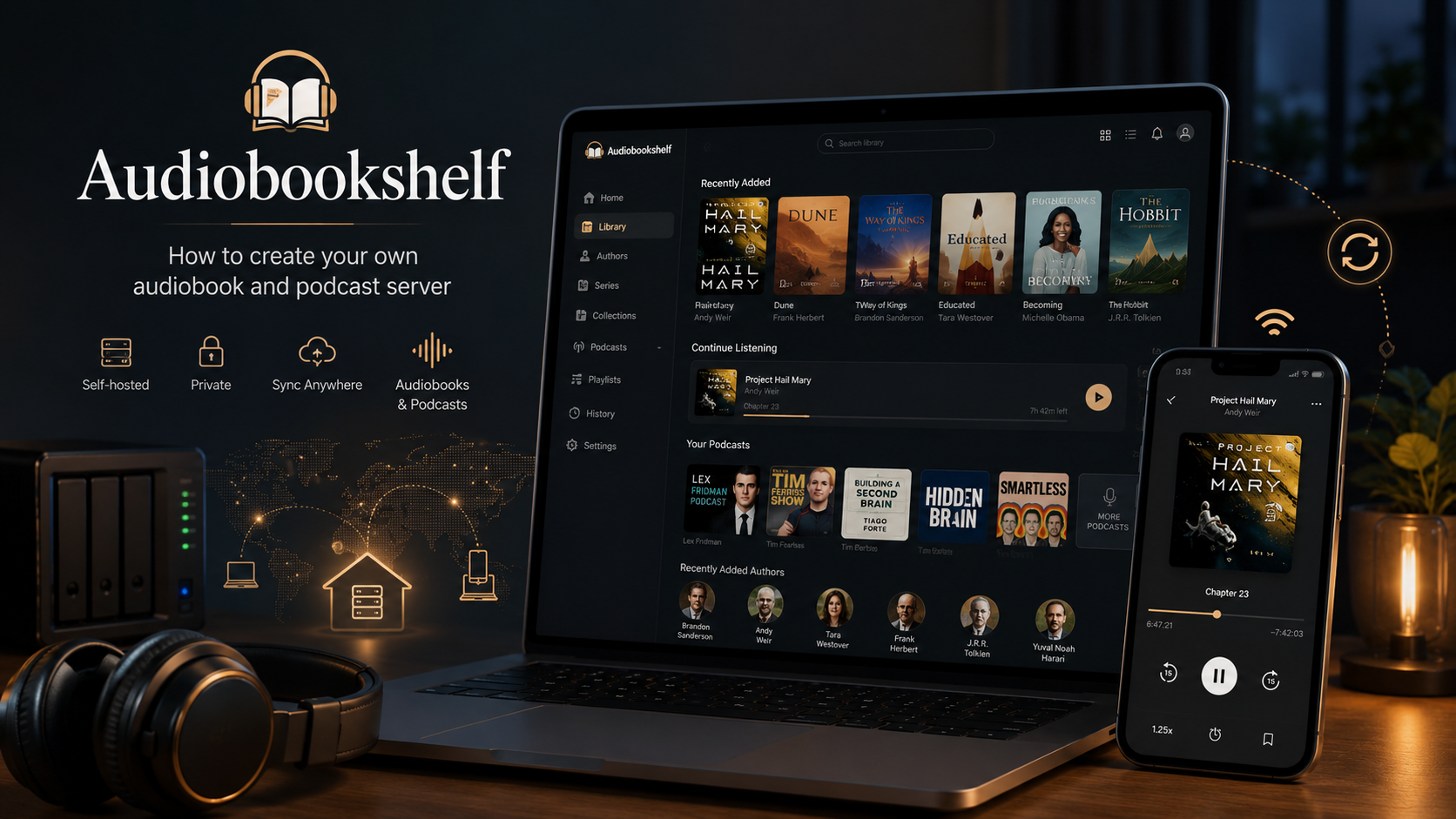
Audiobookshelf: how to create your own audiobook and podcast server
Start listening to a book on your computer, continue from the same place on your phone, download it before a trip, and keep your progress after switching devices — you do not have to depend on yet another paid service for any of this. Audiobookshelf turns your own audio collection into a tidy online library with covers, chapters, apps, and separate profiles for the whole family.
It is neither a store nor a source of free books. Users add legally obtained audio files without incompatible DRM protection themselves. In return, the books, listening history, and settings remain on their own server.
What is Audiobookshelf?
Audiobookshelf is a free, open-source, self-hosted server for audiobooks and podcasts. It scans folders with media files, organizes the library by authors and series, retrieves metadata and covers, and then lets you listen to the collection through a browser or mobile app.
In practical terms, it is a personal streaming service whose catalog you build yourself. The server stores the library and listening progress, while your phone, tablet, or computer acts as a client. This means you can stop a book on one device and continue on another from the saved position.
Audiobookshelf can run at home on a NAS or mini PC. A VPS is more convenient when you need access from any network without keeping a home computer turned on, configuring port forwarding, or depending on your home internet connection.
What can Audiobookshelf do?
Synchronize progress across devices
Each user has their own saved position, history, and bookmarks. A web interface, Progressive Web App, and official mobile clients for Android and iOS are available. You can download a book to your phone in advance and listen without an internet connection.
Create separate accounts
You can create several users on one server without mixing their listening progress. The administrator controls access to libraries and permissions and can restrict content by tags when needed. Every user keeps their own list of books in progress, history, and bookmarks.
Organize the library
The service retrieves titles, descriptions, authors, and covers from external sources, groups books by authors and series, and lets you correct chapters and track order. Multiple MP3 files can be merged into a single M4B file, while the cover and metadata can be embedded into the file. It is best to make a copy of the library before modifying the original files.
Download podcasts automatically
A podcast can be added by title, RSS URL, or OPML file, after which you can schedule automatic downloads of new episodes. The service does not stream an episode directly: the file is first saved on the server. This makes it possible to archive episodes that may disappear, but it also requires disk space.
Keep an ebook alongside the audiobook
You can place an EPUB, PDF, CBR, CBZ, AZW3, or MOBI file in the book folder so that the audio and text open from the same library entry. The built-in reader is basic and does not replace Calibre-Web or Kavita.
Who is Audiobookshelf for?
The service is especially useful in several scenarios:
- you already have a collection of audiobooks in MP3, M4B, M4A, or other common formats;
- you listen on several devices and want synchronization;
- several family members use the library;
- you want to preserve your own podcast archive;
- you want full control over files, user accounts, and backups;
- a regular cloud folder has become inconvenient because it lacks covers, chapters, and listening history.
If you listen to only one or two books on a single phone, a separate server may be unnecessary. Audiobookshelf becomes most useful when the collection grows or needs constant remote access.
What kind of server does Audiobookshelf need?
The project has no universal official minimum: the load depends on the library size, number of users, file scanning, and whether audio transcoding is needed. For a small personal collection, you can use the following starting configuration as a guideline:
| Scenario | CPU | RAM | Disk |
|---|---|---|---|
| 1–2 users, small library | 1 vCPU | 1 GB | from 30–40 GB |
| Family use and several simultaneous connections | 2 vCPU | 2 GB | from 60–100 GB |
| Large library, frequent scanning and file processing | 2–4 vCPU | 4 GB | according to collection size |
This is a practical guideline rather than an official minimum. Disk space is the main resource. A ten-hour book at 64–128 Kbit/s takes roughly 0.3–0.6 GB, so one hundred books require around 30–60 GB, excluding podcasts and backups. It is sensible to start with a small VPS that can be upgraded later.
How to install Audiobookshelf with Docker Compose
Docker is the installation method recommended by the developers. The following steps assume that Docker and the Compose plugin are already installed on Ubuntu or Debian.
Create the project directory and data folders:
mkdir -p /opt/audiobookshelf/{config,metadata,audiobooks,podcasts}
cd /opt/audiobookshelf
Create a compose.yml file:
services:
  audiobookshelf:
    image: ghcr.io/advplyr/audiobookshelf:latest
    container_name: audiobookshelf
    ports:
      - "13378:80"
    volumes:
      - ./config:/config
      - ./metadata:/metadata
      - ./audiobooks:/audiobooks
      - ./podcasts:/podcasts
    environment:
      - TZ=UTC
    restart: unless-stopped
Start the container:
docker compose up -dAfter startup, the dashboard will temporarily be available at:
http://SERVER_IP:13378On your first visit, create the root administrator account, then add a library of the Books type and specify the /audiobooks directory. For podcasts, create a separate library with the /podcasts path.
How to organize audiobook folders correctly
In Audiobookshelf, one book usually corresponds to one folder. The clearest structure looks like this:
/audiobooks/
  Author/
    Series/
      01 - Book title/
        01 - Chapter.mp3
        02 - Chapter.mp3
        cover.jpg
For a standalone book, the series level can be omitted. A single M4B file can also be stored in its own book folder.
The structure matters: if several books by the same author are placed in one shared folder, the scanner may merge them into one library entry. It is better to organize the files before the first full scan. Moving a book between libraries is treated as creating a new item, so its metadata and progress are not transferred automatically.
How to expose the library to the internet safely
Leaving the dashboard on the open HTTP port 13378 is not recommended for permanent use. For remote access, it is better to connect a domain, an HTTPS certificate, and a reverse proxy based on Nginx, Caddy, or Traefik.
Audiobookshelf uses WebSocket, so support for it must be enabled in the proxy. After configuring HTTPS, the container port can be bound only to the local interface:
ports:
  - "127.0.0.1:13378:80"
Use unique passwords, create a separate account for every listener, keep the container updated, and do not grant administrator permissions unnecessarily.
What you need to know about backups
Audiobookshelf's built-in backups save the database and some metadata, including covers from the metadata directory. The audiobooks, podcasts, and covers stored alongside media files are not included in this backup.
A reliable backup strategy therefore has two parts:
- an automatic built-in backup of the database and metadata;
- a separate copy of the
audiobooksandpodcastsdirectories on another disk or in remote storage.
The /config directory contains the SQLite database. The developers recommend keeping it on a local disk of the same server rather than mounting it over the network: network storage may reduce performance and cause database corruption.
Audiobookshelf on a VPS from tropic.host
For a personal library, maximum computing power matters less than continuous availability, enough disk space, and a stable connection. On a VPS, Audiobookshelf runs around the clock and remains available from a phone, computer, or tablet regardless of the state of your home network.
For a small collection, you can start with a basic tropic.host server, install Docker, connect a domain and HTTPS, and then increase resources as the library grows. When choosing a plan, first estimate the size of your audio files and leave room for new books and podcasts.
Limitations worth knowing in advance
Audiobookshelf does not provide a catalog of books and does not remove DRM protection. It works with files that users add themselves and have the right to store.
The mobile apps are under active development and officially retain beta status, so the web interface or PWA remains a useful fallback. Ebook support is basic, and importing a large collection neatly requires following the folder structure and occasionally correcting metadata manually.
For audiobooks, the service provides everything a regular cloud folder lacks: chapters, series, progress tracking, offline downloads, profiles, and podcast support.
Conclusion
Audiobookshelf turns audio files into a personal media library for multiple devices and users. Installation with Docker Compose is straightforward, but reliable operation requires a tidy folder structure, HTTPS, and separate backups of the media files.
FAQ
Is Audiobookshelf free?
Yes. The server and official clients are distributed as open-source software. You only need to pay for hardware, a VPS, a domain, or additional storage if you use them.
Does Audiobookshelf provide free audiobooks?
No. It is a server and player for your own collection. You must obtain audio files legally and add them to the library yourself.
Can I listen to books without an internet connection?
Yes. The mobile app lets you download a book to the device in advance. Once downloaded, a connection to the server is not required for listening.
How much RAM does Audiobookshelf need?
For a small library and one or two users, 1 GB of RAM is a reasonable starting point. For several listeners, extensive scanning, or file processing, it is better to choose 2–4 GB.
Do I have to install Audiobookshelf on a VPS?
No. It can run on a home server, NAS, or compatible computer. A VPS is more convenient when you need around-the-clock access from different networks without configuring a home router or depending on your home connection.