
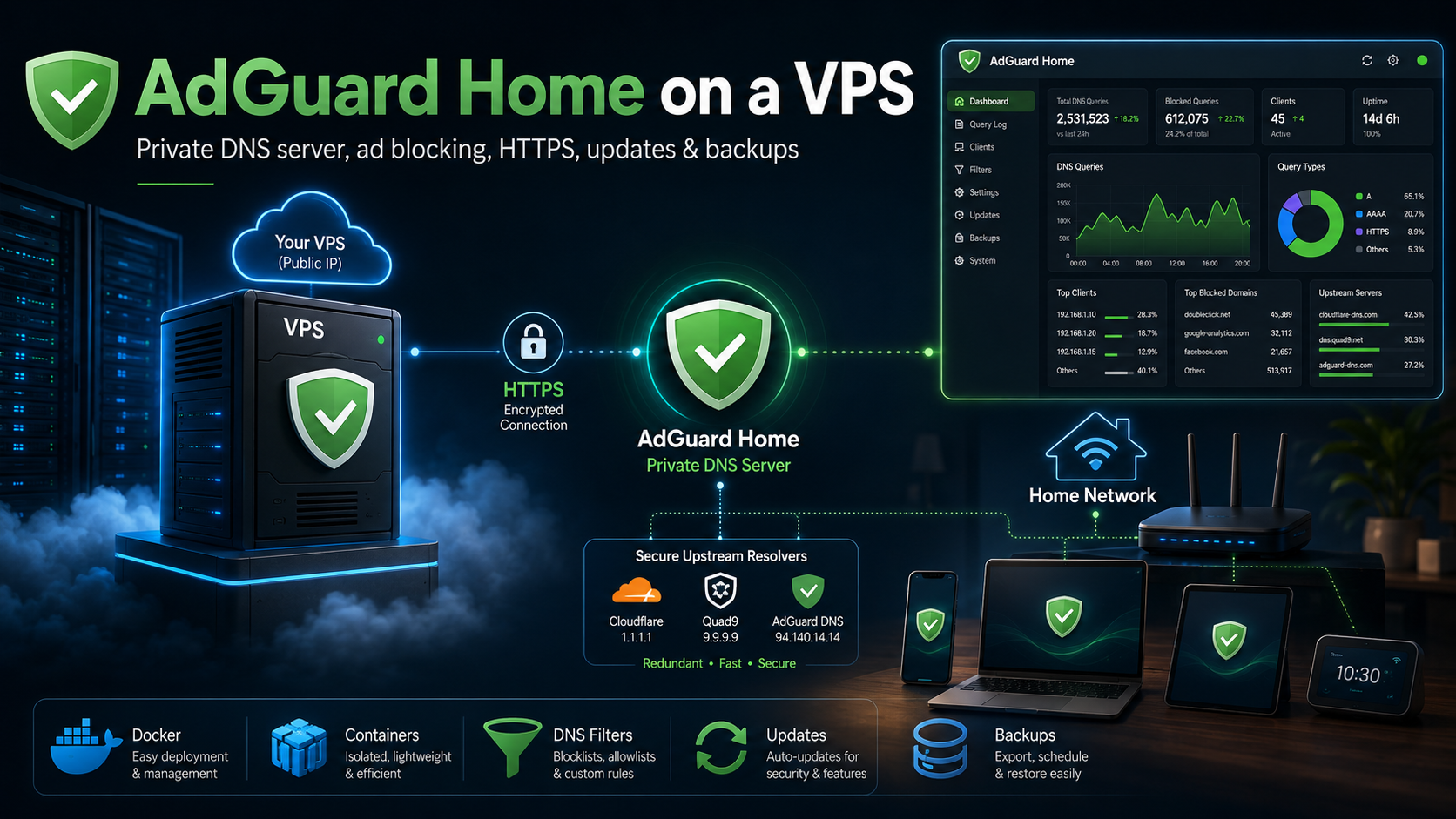
H1: How to install and configure AdGuard Home on a VPS
AdGuard Home is a free DNS server that blocks requests to advertising domains, trackers, and other unwanted resources. You can route DNS queries from computers, phones, TVs, and other devices through it and manage filtering from a single dashboard. Below, we will cover installation on an Ubuntu or Debian VPS, initial configuration, client connection, and protection of a public server.
What you will need
For personal use, 1 vCPU, 512 MB–1 GB of RAM, and a few gigabytes of free storage are usually enough. You will also need a static IP address, SSH access, and root or sudo privileges.
AdGuard Home uses:
3000/TCPfor the initial setup wizard;53/UDPand53/TCPfor regular DNS;- a port of your choice for permanent access to the dashboard.
Port 53 should not be opened to the entire internet without restrictions. We will discuss a secure setup separately.
Installing AdGuard Home on Ubuntu or Debian
Connect to the VPS over SSH and install curl:
sudo apt update
sudo apt install -y curl
Run the official installation script:
curl -s -S -L https://raw.githubusercontent.com/AdguardTeam/AdGuardHome/master/scripts/install.sh | sudo sh -s -- -vThe script will detect the server architecture, download the stable version, install it in /opt/AdGuardHome, and create a system service. You can check its status with:
sudo /opt/AdGuardHome/AdGuardHome -s statusThen open the following address in your browser:
http://SERVER_IP:3000If the page is unavailable, check the system firewall and the rules in your hosting provider's control panel.
Initial configuration
In the setup wizard, you need to choose the addresses and ports for the administration dashboard and DNS server.
For the dashboard, you can keep port 3000 and select the VPS IP address as the interface. Create a separate username and a strong password: the dashboard provides access to the query log, filters, and client settings.
For DNS, select the server IP and the standard port 53. If it is already in use, do not replace it with a random port—most devices expect regular DNS on port 53. A solution to this conflict is provided below.
After completing the wizard, the main page will display query statistics, the number of blocked requests, active clients, and popular domains.
How DNS filtering works
Before connecting to a website or service, a device requests the domain's IP address. AdGuard Home checks the domain against its rule lists. A request to an advertising network or tracker is blocked, while an allowed request is forwarded to an upstream DNS server.
This approach provides centralized filtering for the entire network and works not only in browsers but also in many mobile applications and on Smart TVs. Additional features include a query log, per-device rules, Safe Search, and scheduled service blocking.
AdGuard Home does not decrypt HTTPS traffic or modify page code. It therefore blocks domain requests but cannot remove every advertising element.
Essential settings after installation
Upstream DNS servers
Open Settings → DNS settings. This is where you specify the servers to which AdGuard Home forwards allowed requests. You can keep the suggested values at first and later choose reliable resolvers that support DNS-over-HTTPS or DNS-over-TLS.
Encrypted upstream DNS protects the connection from the VPS to the external resolver. The connection from the device to the VPS must be protected separately with DoH, DoT, or a VPN.
Blocklists
The basic filter is already enabled. Do not add dozens of large lists at once: they duplicate one another and increase the risk of false positives. Add one list at a time for a specific purpose and review the query log.
If a website or application stops working after a change, find the blocked domain in the log and add a targeted exception.
Custom rules
In custom rules, you can block or allow an individual domain:
||ads.example.com^
@@||needed.example.com^
The first line blocks the domain, while the second adds an exception.
Services, schedules, and clients
AdGuard Home can completely block individual services and apply a schedule. If you add devices as persistent clients, you can assign different rules to a computer, a child's tablet, and a television.
How to connect devices
Installing the server does not automatically change DNS settings on your devices. You need to specify the AdGuard Home address on the router or on each client.
Through the router
Open the router settings and find the DHCP, LAN, or DNS section. Specify the AdGuard Home IP address as the DNS server, save the configuration, and reconnect the devices to the network.
Do not add a public DNS server as the secondary address if filtering must be mandatory. Some devices use both addresses and may bypass AdGuard Home. For fault tolerance, it is better to deploy a second instance.
On a single device
For testing, you can change DNS only on one computer or phone:
- Windows — network adapter properties and IPv4/IPv6 settings;
- macOS — settings of the active connection;
- Android and iOS — settings of the current Wi-Fi network;
- Smart TV — manual network settings.
A regular Wi-Fi configuration does not apply when using mobile data. To make filtering work on any network, you will need DoH, DoT, or a VPN.
You can test the server with:
nslookup example.org SERVER_IPThe request should appear in the AdGuard Home query log.
Secure configuration on a public VPS
Automated scanners quickly discover an open DNS resolver. It can be used by unauthorized clients or involved in DNS attacks, creating extra load and a risk of complaints against the IP address.
For testing, allow access only from your public IP address. If UFW is not installed, first add it with sudo apt install -y ufw.
sudo ufw allow OpenSSH
sudo ufw allow from YOUR_IP to any port 3000 proto tcp
sudo ufw allow from YOUR_IP to any port 53 proto udp
sudo ufw allow from YOUR_IP to any port 53 proto tcp
sudo ufw enable
Allow SSH first, otherwise you may lose access to the VPS. If your IP address changes frequently, connect devices through WireGuard, Tailscale, or another VPN.
For permanent use from different networks, it is better to configure a domain, a TLS certificate, and secure DNS:
443/TCPfor DNS-over-HTTPS;853/TCPfor DNS-over-TLS;- client and query-rate restrictions in the AdGuard Home settings.
The administration dashboard should also be protected by a firewall or VPN. The log contains the domains accessed by devices, so retain it only for as long as necessary.
“Port 53 is already in use” error
On Ubuntu, port 53 is often occupied by systemd-resolved. You can check listening processes with:
sudo ss -lntup | grep ':53'If the service listens only on 127.0.0.53, first try binding AdGuard Home to the specific VPS IP address instead of all interfaces.
If the conflict remains, disable the local DNS stub listener:
sudo mkdir -p /etc/systemd/resolved.conf.d

printf '[Resolve]\nDNS=127.0.0.1\nDNSStubListener=no\n' | \
sudo tee /etc/systemd/resolved.conf.d/adguardhome.conf

sudo mv /etc/resolv.conf /etc/resolv.conf.backup
sudo ln -s /run/systemd/resolve/resolv.conf /etc/resolv.conf
sudo systemctl reload-or-restart systemd-resolved
sudo /opt/AdGuardHome/AdGuardHome -s restart
Do not close the SSH session until you have confirmed that the server can resolve domain names again and that AdGuard Home is running.
Updates and backups
You can update from the dashboard or with:
cd /opt/AdGuardHome
sudo ./AdGuardHome --update
Before major changes, save the /opt/AdGuardHome/AdGuardHome.yaml file and the /opt/AdGuardHome/data/ directory. They contain settings, clients, filters, and operational data.
Which VPS to choose for AdGuard Home
For a family or a small team, 1 vCPU and 1 GB of RAM are usually enough. If a VPN, monitoring system, or other applications will run alongside AdGuard Home, allocate additional memory.
A VPS from tropic.host is suitable for this task: you can install Ubuntu or Debian, receive a dedicated IP address, and keep the DNS server available around the clock without relying on a home computer. When hosting it on the internet, always use a firewall, secure DNS, or a VPN.
AdGuard Home limitations
DNS filtering does not replace a browser-based blocker, antivirus software, or a firewall. It cannot reliably remove ads delivered from the same domain as the main content. For this reason, DNS-level filtering cannot reliably remove YouTube and Twitch video ads or sponsored posts inside social networks without disrupting the services themselves.
Blank spaces may remain on a page after blocking. A browser extension can hide page elements, so it can be used together with AdGuard Home. Some applications also use their own encrypted DNS and can bypass system settings.
Conclusion
AdGuard Home centrally blocks a significant share of ads and trackers on computers, phones, and other devices. It can be installed on a VPS in a few minutes and does not require many resources.
After installation, configure clients and filters, protect the dashboard, and do not leave port 53 open to the entire internet. To connect from mobile and external networks, use a VPN, DNS-over-HTTPS, or DNS-over-TLS.
FAQ
Is AdGuard Home free?
Yes. AdGuard Home is distributed free of charge and does not require a subscription. You only pay for the device or VPS on which it runs.
Does AdGuard Home block ads on YouTube?
No. Ads and videos may be delivered from the same domains, so DNS blocking would disrupt YouTube itself.
Does filtering work over mobile data?
Yes, if you configure DNS-over-TLS, DNS-over-HTTPS, a compatible profile, or a VPN. Changing DNS in the Wi-Fi settings applies only to that network.
How much RAM is required?
For personal use, 512 MB–1 GB of RAM is usually enough. More memory may be needed for a large number of clients, extensive filters, or additional services.
What should I do if a website stops opening after I enable filtering?
Open the query log, repeat the action that caused the problem, and find the blocked domain. Add a targeted exception instead of disabling all filtering.